


This documentation was created using Adobe Acrobat Pro DC for Mac desktops.
Reconsider: Do You Need a PDF?
Fixing a PDF for accessibility issues can be a time-consuming and arduous process. First, consider if you really need a PDF. For example, a PDF form could be recreated in Qualtrics or Google Forms. A PDF with a memo can be a page of text on your website. We strongly recommend only using PDFs in cases in which they are the only option for delivering content: for example, a form that must be printed.
Start from the source
Start by authoring accessibility best practices in the original document format, such as in Microsoft Word or PowerPoint, and then export the file as a PDF. It is much easier to include and resolve accessibility issues in the source document than to try and remediate accessibility issues in the PDF document.
When exporting to PDF, use File > Save As and select the PDF format, then select "Best for electronic distribution". Do NOT "print" to PDF.
Check and Remediate in Adobe Acrobat Pro
Especially if you don't have the original source file, you can check and remediate using Adobe Acrobat Pro. If you don't already have it installed, here's information about how to install Adobe Creative Cloud software.
Can you select text? If not, OCR
If you're unable to select text in a PDF, the PDF is an image file with graphic elements representing the letters on the page, not actual text content. An image-based PDF must be converted into searchable text using optical character recognition (OCR) before addressing accessibility in the document.
To perform OCR in Adobe Acrobat, open your scanned PDF, go to the Tools menu, and select Scan & OCR. Then, click In This File under the "Recognize Text" heading and select the blue Recognize Text button to make the text searchable and editable. For the web version, go to acrobat.adobe.com, choose Convert > Recognize text with OCR, and follow the prompts.
Run the Accessibility Checker
- Open your PDF in Adobe Acrobat
- On the tools menu (usually on the left side), select View More
- Select Prepare for Accessibility
- Select Automatically tag PDF
- Select Check for Accessibility and complete the check
- From the report (usually appears in the right sidebar), expand any areas with issues.
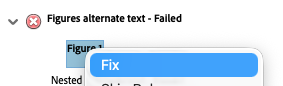
- Right click (Control Click on Mac) the item with issue and select Fix. For example, if an image is missing Alt Text, selecting Fix will allow you to add it.
- Last, re-save your PDF