


Google Slides is a popular tool for creating slide show presentations. Improving the accessibility of Google Slides can be accomplished by incorporating the following practices into your authoring process.
Structure
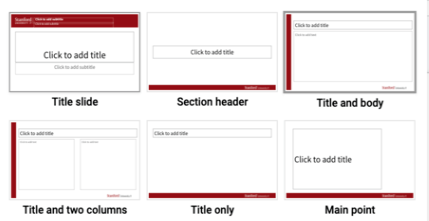
One important way to support accessibility in your slides is using the provided layouts that have a Title and Body area. (Do not start with a blank slide and add arbitrary text boxes.)
Using a correct title and body field on the slide will ensure that screen readers understand the structure of the slide.
If you have removed the title and body from your slide and need to get them back, just select one of the provided layouts. In the toolbar, select Layout. Choose your desired layout.
Slide title
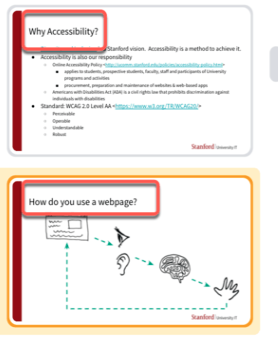
The Slide Title is used to provide a heading for the slide's content. Slide titles should be unique and descriptive to help users navigate to specific content on the slides.
Managing reading order
If you do add arbitrary text boxes to your slide, you must make sure it's in the correct reading order for a screen reader.
- Tab through the slide to see the reading order. The order in which elements are selected indicate the order in which they will be read.
- To change the reading order, select Arrange > Order.
- Send Backward will move the element to be read earlier in the reading order.
- Bring Forward will move the element to be read later in the reading order.
- Test the reading order with the Tab key again.
Images
Like in websites and documents, each image should have alt text so screen readers understand the image.
To add the alternate text:
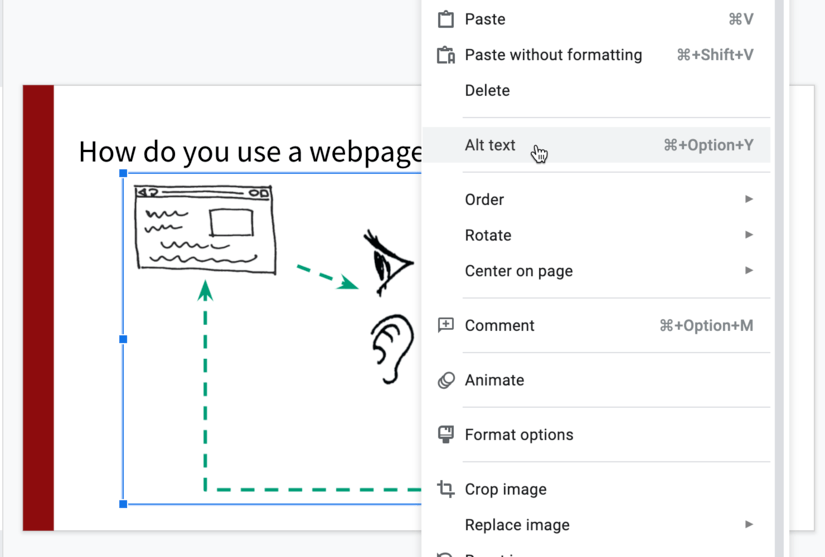
- Select the image. Right-click.
- Select Alt text.
- In the Alt Text window, write the alt text in the Description field.
- Select OK.
For additional guidance on writing effective text descriptions (i.e., alt text), please review Create Accessible Images with Alt Text.
Hyperlinks
Documents containing hyperlinks to websites or other online resources can be improved by including hyperlink text that is understood by the reader. For instance, using the full hyperlink URL may not make sense to the reader without some context.
- Highlight the descriptive word or phrase that will become the hyperlink.
- Select Insert Link button in the rich content editor.
- Write the hyperlink in the Link field and select Apply.
For more tips on links, see Creating Accessible Links.
Exporting to PowerPoint
If you plan to distribute your presentation to others as an MS PowerPoint, download the Google Slides as a PowerPoint Presentation and then run the Accessibility Checker from within PowerPoint. This can help identify any potential accessibility issues and prompt you for corrections.
- Select File.
- Select Download.
- Select Microsoft PowerPoint (.pptx).
- Download the file and run the Microsoft PowerPoint Accessibility Checker (in the review tab)
The Accessibility Checker will identify potential accessibility issues in the downloaded PowerPoint file. The most common issue is the need to verify the reading order on each slide.