


Microsoft's Accessibility Checker can help you identify potential accessibility issues in documents and presentations. Microsoft continually updates the Accessibility Checker rules and which accessibility errors or warnings will be triggered due to the document's content. Different versions of Microsoft products may result in identifying different accessibility issues due to variations in the Accessibility Checker rules.
Microsoft Word Accessibility Checker
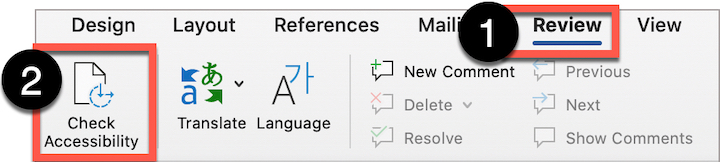
- Select Review in the ribbon.
- Select Check Accessibility.
- The Accessibility Checker will appear on the right-hand side.
Microsoft PowerPoint Accessibility Checker
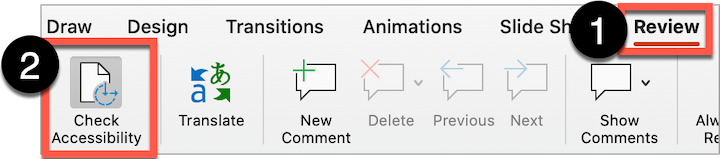
- Select Review in the ribbon.
- Select Check Accessibility.
- The Accessibility checker will appear on the right-hand side.
Errors, warnings, and tips
The Accessibility Checker presents the results in a pane on the right-hand side of the interface. It organizes the results into three categories: Errors, Warnings, and Tips.
Errors
Errors are must fix issues that indicate the content contains accessibility issues and will pose barriers for an individual using assistive technologies to access, read, or understand the content. Follow the directions identified in the Accessibility Checker panel to address the specific error identified in the document.
Warnings
Warnings indicate that the content may be challenging for individuals using assistive technologies to read or understand. Warnings may require the author to consider a different visual or organizational layout and are intended for the content author to perform a manual verification that the content is accessible (e.g., color and contrast choices are appropriate). Not all warnings will be resolved by following the best practices indicated in the notification panel.
Tips
Tips represent best practices and are intended to help you improve the document's accessibility by organizing your content in certain ways. Tips provide additional guidance and will appear depending on the content. Tips are optional and do not require the content author to make specific changes.