On or before May 11, 2026 automatic captions will be turned on for all new content uploaded to Panopto in an effort to better meet the HHS Section 504 Ruling compliance and WCAG 2.1 Level AA standards on digital accessibility.
Automatic machine captions are generated using an ASR (Automatic Speech Recognition) engine and may contain errors. Creators and owners of any content uploaded or recorded must provide an accessible environment by reviewing and editing auto-generated captions. If automatic captions are not meeting expectations you may request ADA-compliant human generated captioning by contacting [email protected]
Panopto offers automatic captioning for any video or audio files uploaded to a course folder. This option can be easily turned off or on by following these instructions.
Note: Zoom Cloud Recordings automatically transferred to Panopto may already contain captions that will not be overwritten by Panopto machine captions if they are already present. Zoom auto captions should also be reviewed and edited for accuracy.
Manage Captions setting for entire folder
1. Navigate to the course folder which you have Creator access and Click the three dots drop down and then "Settings" in the top right corner.
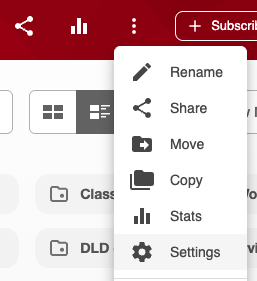
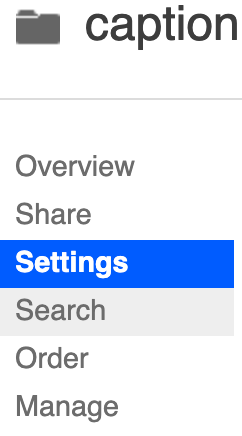
2. In the Overview Window click on the Settings tab on the left side
3. In the Captions section you will be able to select Automatic Machine Captions from the drop down.
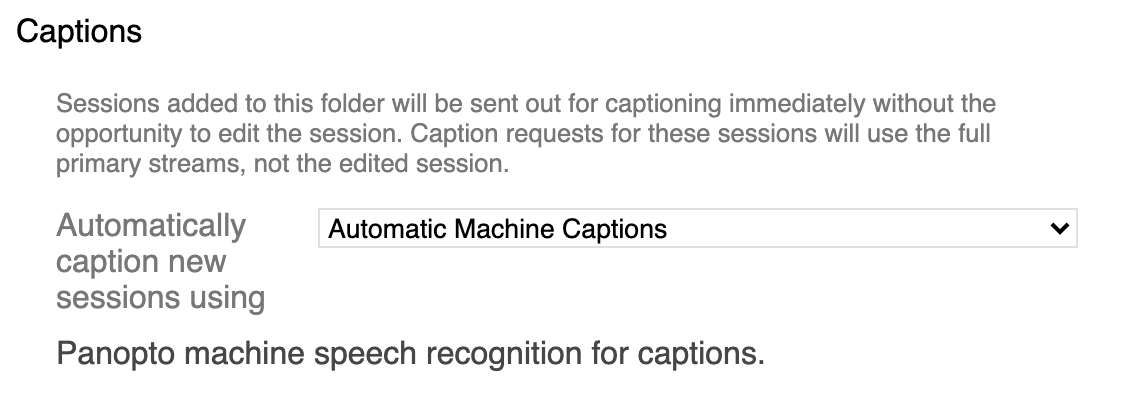
This will provide automatic captions for any new files uploaded to the folder. This setting is not inherited by subfolders and would need to be turned on for any newly created subfolders.
Manage captions for individual videos
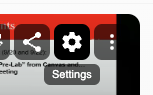
If you need to add automatic captions to existing video or audio files you can do this by hovering your mouse over the video and click Settings
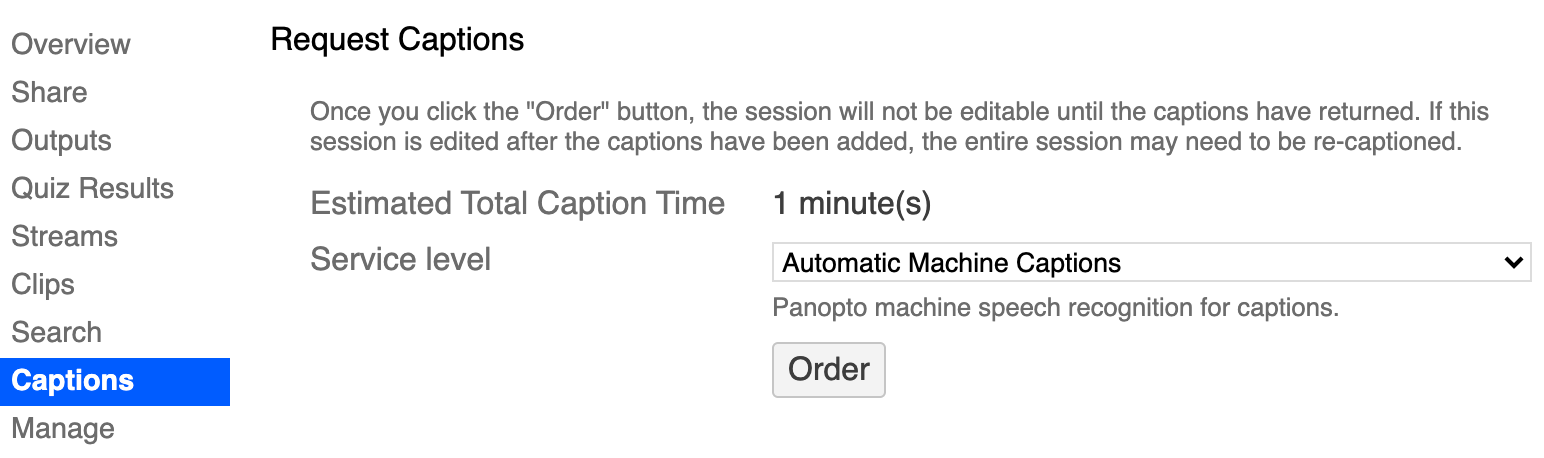
On the left side click Captions , select Automatic Machine Captions from the Request Captions field and click Order.
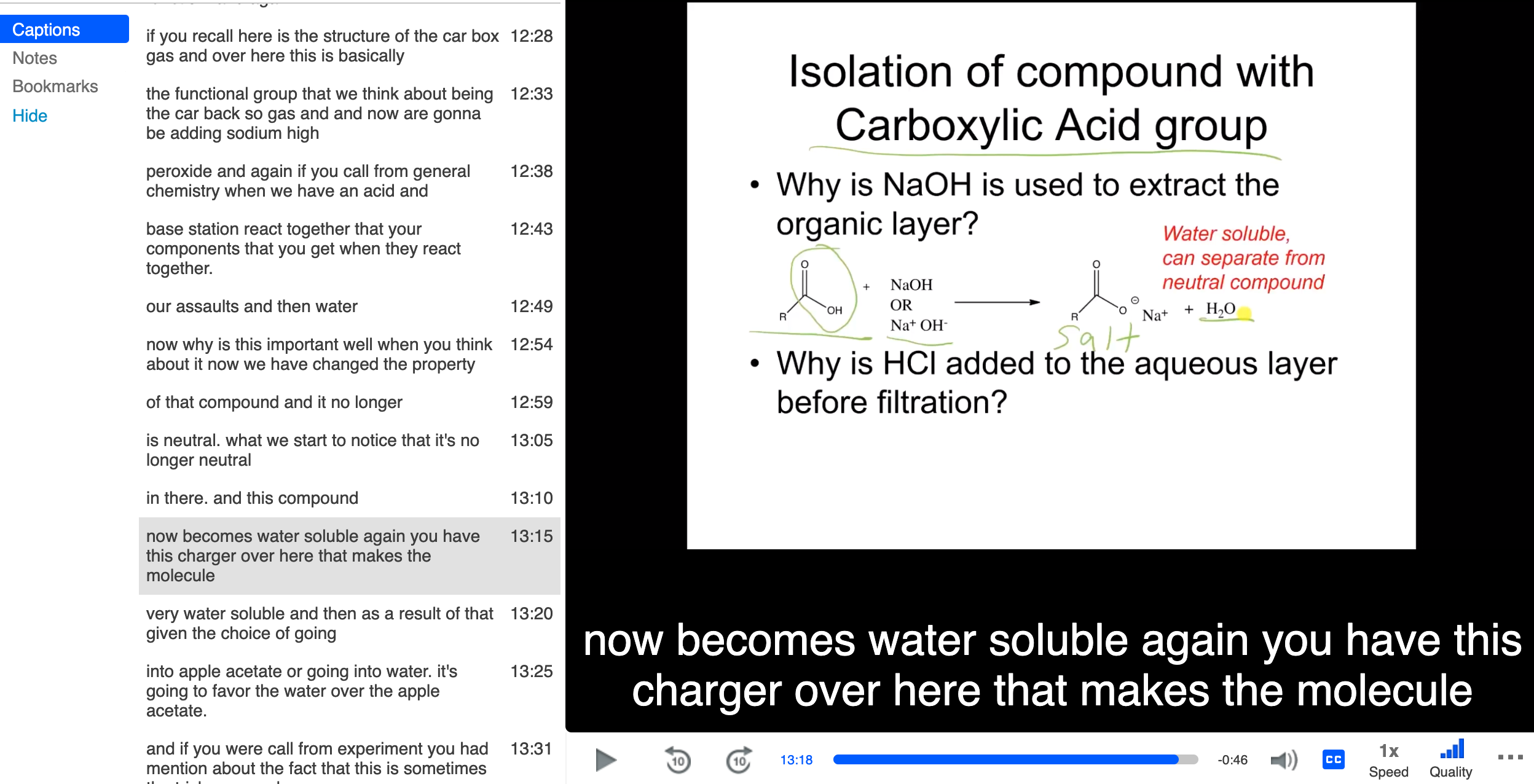
Following these steps on the folder or video will instantly embed the captions on the video . Viewers can turn on and off captions by clicking the (CC) button at the bottom of the player. Closed captions also provide a searchable transcript next to the video player.
Editing Automatic captions for videos
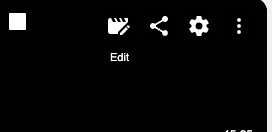
To Edit captions on a video, you will need to open the online video editor by hovering your mouse over the video and click Edit
In the Panopto editor window that opens, the Captions tab is located on the left-hand side of the screen. These captions can be edited by clicking on the text. Line breaks can be inserted using the keyboard shortcut Shift+Enter. Once you're satisfied with the edits, press Enter to submit the new entry.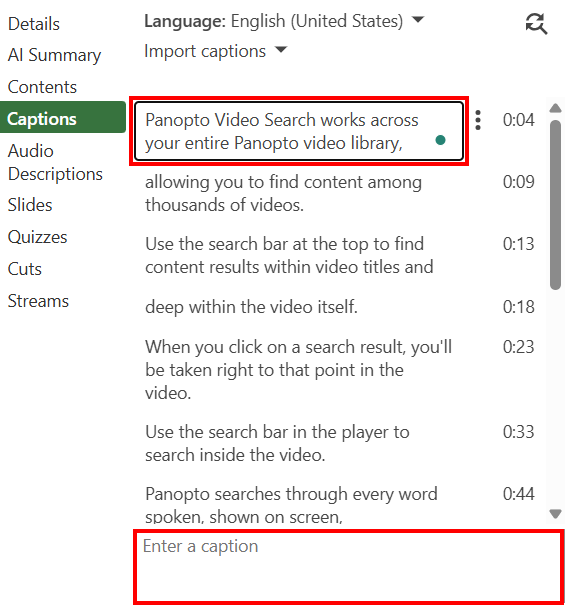
To create a new caption or audio description, seek to the exact point in the video you would like to add the section and then begin typing in the blank text box at the bottom. Pressing Enter will submit this section at the time indicated on the video timeline and you can continue editing or adding captions.
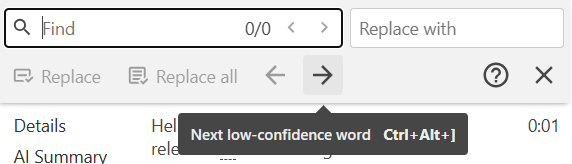
If a certain word has been incorrectly spelled, you can change all instances of that word using the Find & Replace feature. On the upper-right of the Captions window, select the Find & Replace icon (rotating magnifying glass).

In the new search bar, type in the incorrect word, and then type the replacement in the replace with bar. Words matching your entry will appear highlighted in yellow in the editor. You can navigate through the located words by pressing Enter or by using the arrows beneath the search.
As you navigate through the located words, you can manually replace them by clicking on Replace. Alternatively, you can click on Replace All to correct all instances of this word instantly.
If the captions were created via ASR (automatic captions), the Find & Replace bar will also highlight low-confidence words. When there is nothing in the search bar, use the arrow keys or Ctrl+Alt+] to navigate through these words.
Once you are satisfied with the edits to your captions you will need to Click Apply in the top right corner of the edit window to apply the changes to the video.