


Summary/Issue
CrowdStrike is a Next Generation AntiVirus (NGAV) that relies more on analyzing behaviors than it does on scanning files, but you can still use it to run manual scans on your computer for peace of mind. You can use the On-Demand Scan feature to scan your system drive, other drives attached to your computer, or just files on your computer that you think are suspicious or might contain malicious code.
NOTE: On-Demand Scanning with CrowdStrike is only available on Windows for now.
Support for On-Demand Scanning in macOS is coming. In the meantime, CrowdStrike is still protecting your Mac computer and will block malicious files from running in real time. On-demand scanning just enables you to scan a file before executing it. It's not necessary to do that with Next Generation AntiVirus, but CrowdStrike supports it as a peace of mind feature on Windows and will support it soon for macOS.
NOTE: When running an On-Demand Scan, CrowdStrike will only alert you if it detects something! It is normal to not get any feedback if the scan turns up clean!
Target Audience
Customers on Brown-managed endpoints
Prerequisites (if applicable)
Must be on a Windows Machine
Steps
Step 1: Scanning Drives in Windows
Be aware that scanning a large drive full of files could take a long time! CrowdStrike is very efficient with its scans, only looking at files that could potentially execute code, but you should still be prepared to give it some time.
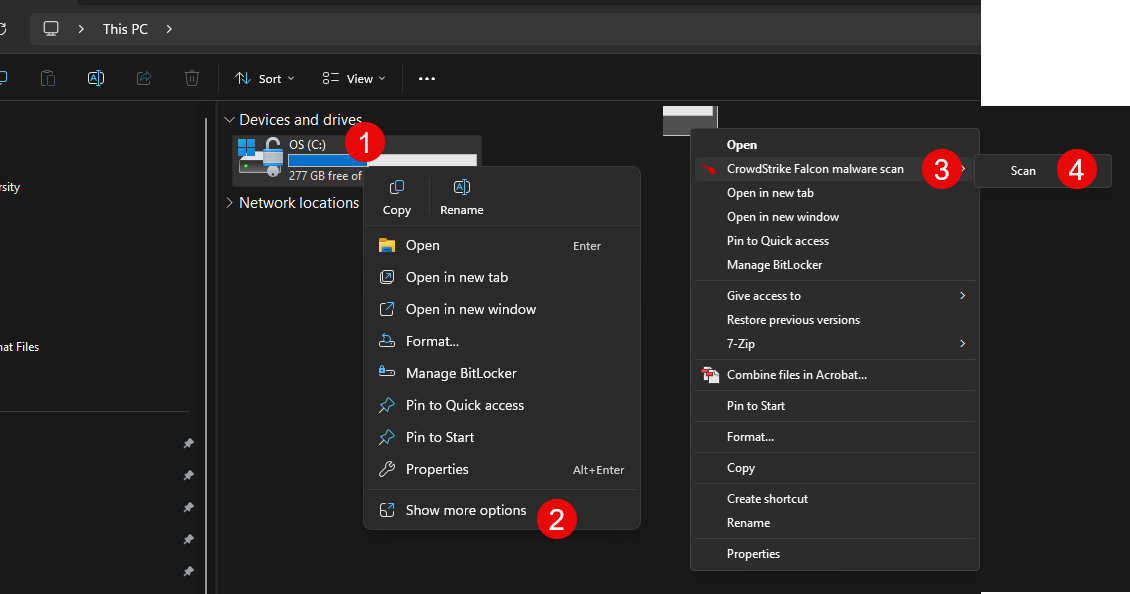
You can scan any drive attached to your computer by right-clicking it in File Explorer and selecting the Scan option from the CrowdStrike Falcon menu. (Right Click >Show more options > Crowdstrike FFalcon malware scan > Scan
You can also find convenient drive scan options in the CrowdStrike menu from right-clicking on your Desktop. You can scan all drives, scan just your system drive (usually C: on Windows), or see the results of your last scan. Using the "see results of last scan" option is usually unnecessary since CrowdStrike will alert you to anything it finds when you run a scan. No news is good news, but you're welcome to use the "see results of last scan" option if you want confirmation that the scan completed.
What to Do If CrowdStrike Detects Malware
If CrowdStrike detects something malicious on your computer, don't panic. It's good that you caught it "at rest" before it could execute and potentially harm your computer. CrowdStrike will automatically report any detections to the Information Security Group for review, but we also encourage you to email [email protected] with additional details you can provide for context. For example, if CrowdStrike detects a malicious executable in your Downloads folder, do you remember where you downloaded it from and when?
What to Do If CrowdStrike Doesn't Show Anything
No news is good news when it comes to On-Demand Scanning with CrowdStrike. Ideally, you run the scan and nothing happens. If you want to confirm that the scan actually executed, you're welcome to use the "see results of last scan" option which you can access from your Desktop. Just right-click anywhere on your Desktop, go to the CrowdStrike Falcon menu, and then click on the "See results of last scan" submenu option.
Troubleshooting/Common Issues (Optional)
Issue: I can’t find the On-Demand Scans on my Mac or Linux machine
Solution: On-Demand Scans are only available on Windows, not Mac or Linux
Issue: My scan results show a number of “Unsupported Files”. What does this mean?
Solution: "Unsupported files" in a CrowdStrike scan are normal, typically representing non-executable files like images, documents, or data files (e.g., .png, .csv) that cannot run malicious code. CrowdStrike focuses on scanning executables, scripts, and active processes, ignoring inert files to optimize efficiency without compromising security.
Feedback/Review
Please submit all article feedback to [email protected]