


Saving and Migrating Google Drive Data
To maintain data security and optimize storage costs, Brown University periodically purges Google accounts belonging to individuals who are no longer affiliated with the University. If you use shared files owned by these accounts, you must take action to preserve that data before the source accounts are deleted.
Step 1: Identify At-Risk Files
Beginning in May 2026, OIT will apply Drive Labels to files owned by inactive accounts to help you identify data at risk of being lost. You can identify these files using the following methods:
1. Check the Account Name
Inactive accounts are often renamed to include a qdelete- prefix (e.g., [email protected]). If you see this prefix on a file owner's name in your Drive, that data is scheduled for deletion.
2. Search by Label
- Open Google Drive.
- In the search bar, click the Advanced Search (sliders) icon.

- Find the Labels field and select Warning.
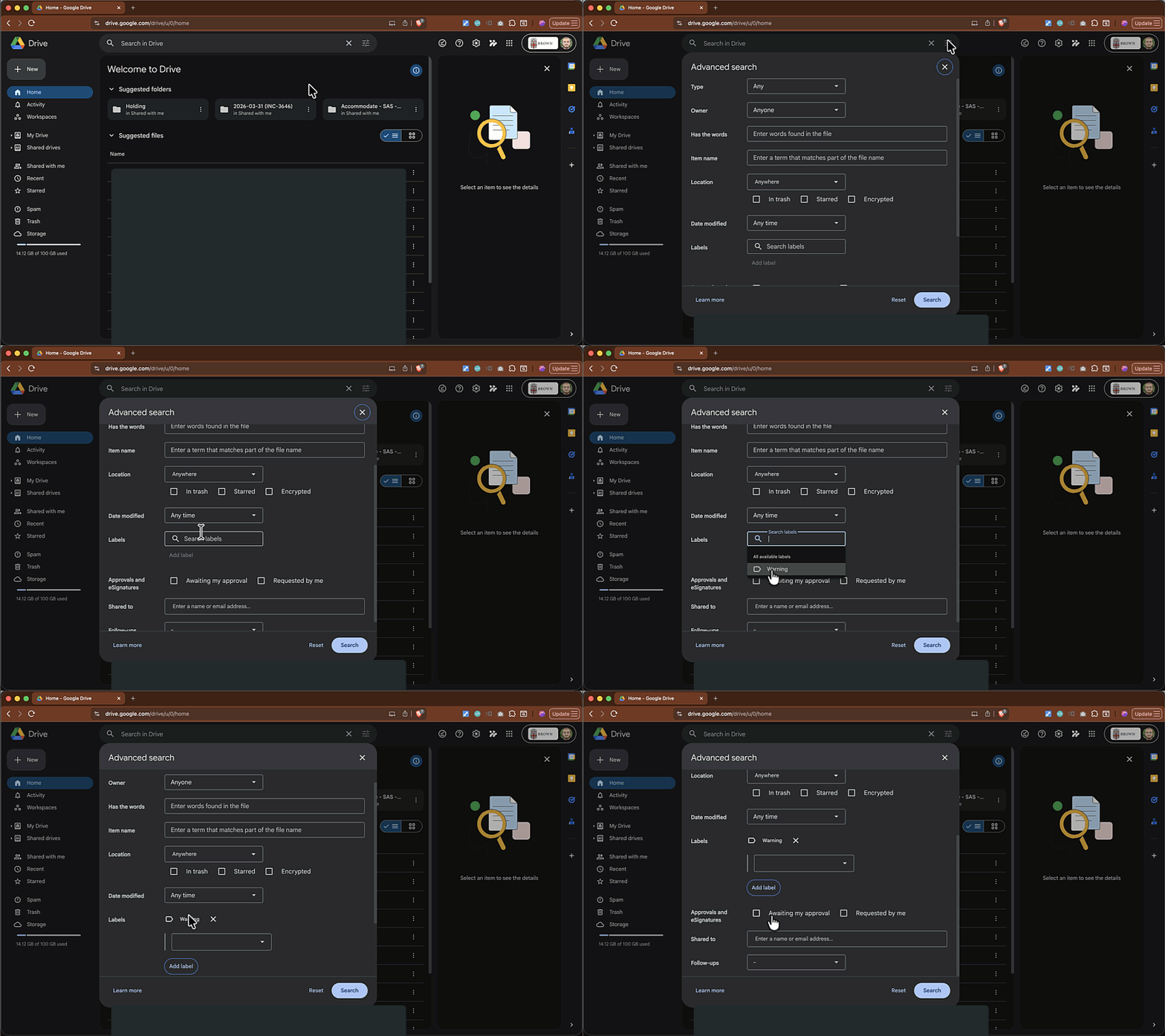
- Under the Warning sub-options, search for values such as
Pending Deletion,Action Required, orDrive Pending Deletion.
- Click Search.
- Pro Tip: To further narrow results, add
to:meto your search query to filter for files explicitly shared with you.
Step 2: Choose Your Migration Method
Choose the method that best fits your collaboration needs to ensure continued access to your data.
Option A: Move to a Shared Drive (Recommended)
Moving files to a Shared Drive is the most effective way to "save" data because the organization owns the files, rather than an individual.
- Requirements: You must have Editor permissions on the file and be a Manager or Content Manager of the destination Shared Drive.
- How to do it: Select the files and drag them from your personal Drive into the Shared Drive.
- Note: New Shared Drives have a default quota of 5GB. Students needing a Shared Drive should request a faculty or staff member create one on their behalf to ensure data is maintained after graduation.
How to Move Files to a Shared Drive
Method 1: From your Google Drive File List
- Locate the file owned by the inactive account (often prefixed with "qdelete-").
- Click and hold the file, then drag and drop it into the desired Shared Drive in the left-hand navigation pane.
- Confirm the Move: A dialog box may appear warning you that ownership will change to Brown University. Click Move to complete the migration.
Method 2: While the File is Open
- At the top of the document, next to the file name, click the Move icon (folder with an arrow).
- Navigate to Shared Drives and select the specific drive where you want to store the file.
- Click Move and confirm any ownership change prompts to finalize the transfer.
- Permissions: You must have at least Editor access to the original file to move it.
- Shared Drive Role: You must be assigned as a Manager or Content Manager of the destination Shared Drive.
- Access Change: Moving a file grants access to all members of that Shared Drive. Ensure the drive's membership is appropriate for the file's sensitivity.
- Storage Limits: New Shared Drives have a default quota of 5GB. If you need more space, contact the OIT Service Center for an increase.
Option B: Make a Copy
If you prefer to own the file personally or do not have access to a Shared Drive, you can create a copy to break the link with the inactive account.
- How to do it: Right-click the file and select Make a copy.
- Result: This creates a new file in your "My Drive" that you own; it will not be affected when the original "qdelete-" account is purged.
- Consideration: Making a copy does not preserve version history or existing sharing permissions; you must re-share the new file with collaborators.
Step 3: Clean Up Labels
Once a file is moved to a Shared Drive, OIT will periodically remove the "Pending Deletion" label. To remove it manually:
- Right-click the file in Google Drive.
- Hover over Labels and select View Labels.
- Click the Trash icon next to the "Warning" label and confirm Remove.
Note: Labels cannot be removed while a file is still owned by an inactive account.
Need Assistance? Contact the IT Service Center for help with folder migrations or identifying at-risk data.