


Google Chat has an Apps section that can send you automated notifications about changes to your Google Drive. This can be very helpful to tell you about shared drive files and comments made on your collaborative documents.
However, cybercriminals are increasingly using Google Drive to share malicious files. Depending on your settings, these messages might show up in automated notifications in both Google Chat and email.
While OIT's security tools can often detect and block Google Drive sharing emails from bad actors, the Google Drive app in Google Chat can still generate a tempting notification. This can present a link where you can interact with dangerous phishing documents.
You can configure your Google Chat for Drive settings, so you're aware of files shared with you. If you don't want these messages, it's also possible to turn them off entirely, so all of your sharing notices come from email. Google's protections in email are more likely to help you avoid malicious messages.
From the Google Apps section of your Google Chat screen:
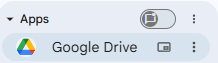
You can modify notification settings by clicking the three-dot menu:
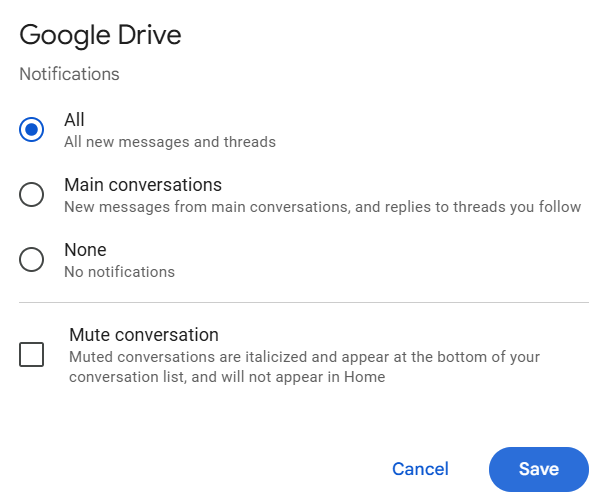
This screen will allow you to change your notification settings and reduce the number of sharing notices you receive.
If you decide to leave notifications on, you should still take care to ensure that you know who has sent you a sharing notice, and that the message is legitimate. Attackers can attempt to have you open documents that are malicious, and attempt to steal your personal information.
Sharing messages that are from outside the University will have an extra notice on them asking you if the file looks suspicious. Messages from @brown.edu addresses will not.
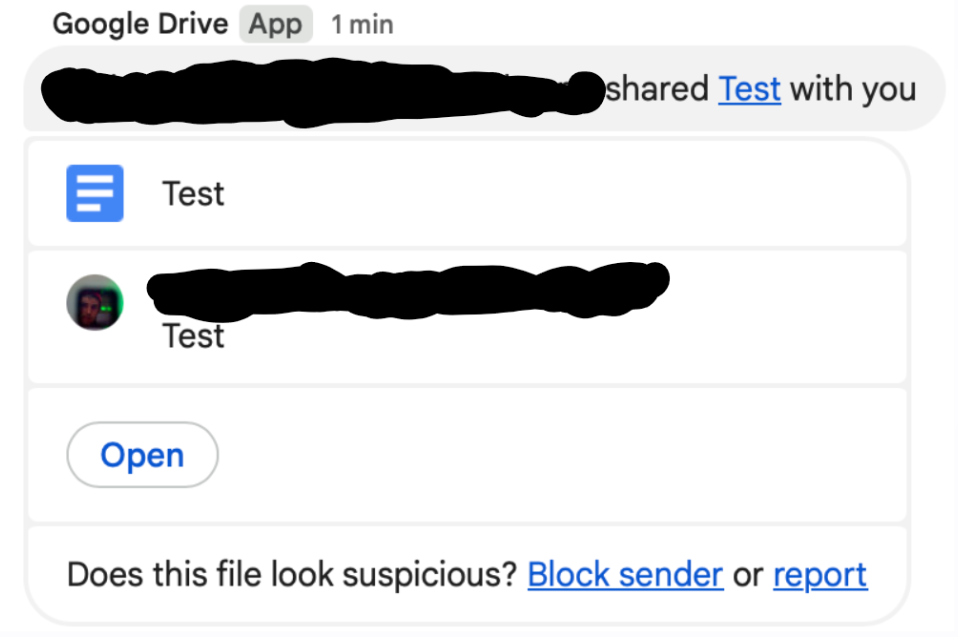
To protect yourself against this activity, you can take the following actions:
Remember that OIT staff will not call you and ask you to validate your credentials.
Always check the sender. If the message comes from an unfamiliar or non-Brown email address, treat it as suspicious.
Be cautious of unexpected file shares, especially those referencing compensation, payments, or urgent requests.
Never open files or respond unless you can verify the sender.
Cybercriminals have even made follow-up phone calls to individuals after these documents have been shared, trying to get members of the Brown Community to click their malicious links and log in to fake websites. Exercise caution if you receive calls about your Brown account.